What Makes an Offline Writing App Worth Using?
A good offline writing app lets you open, create and edit documents with no connection, saves every change to your device at once, and syncs safely when you are back online. It does this without losing work or forcing you to change how you write.
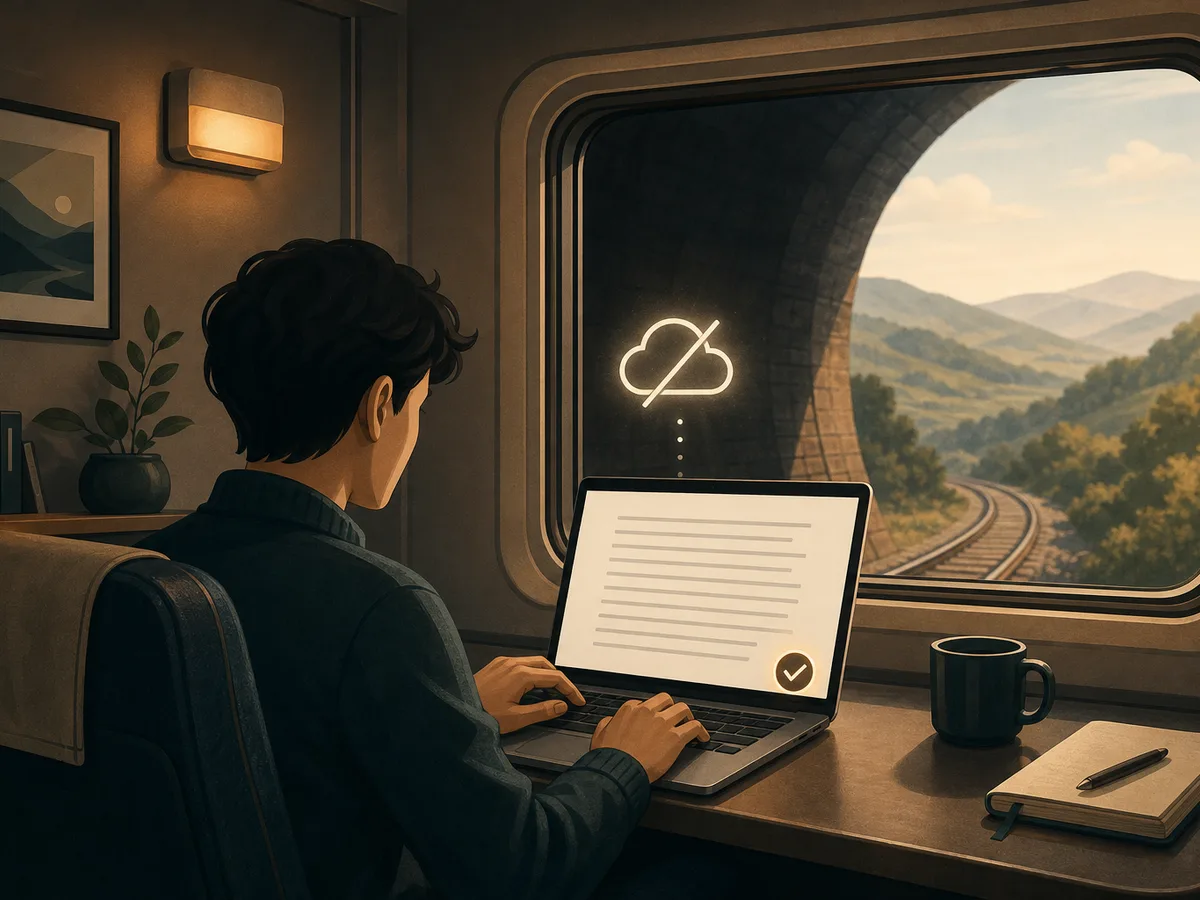
That standard matters most to people whose connection is unreliable:
- Commuters who lose signal in tunnels or on trains.
- Travelers on planes, in foreign countries, or in places where roaming is costly.
- Writers in cabins, cafés with weak Wi-Fi, or anywhere the signal comes and goes.
For anyone who wants to draft without internet, the app should behave the same whether the connection is strong, weak, or gone.
Core capabilities to expect
- Full editing of new and existing documents offline, not just reading.
- Instant local saving, with no "waiting to connect" warnings.
- Reliable sync and clear handling of conflicts.
- Drafts you can export and keep, whatever happens to your account.
The criteria this article develops
The sections ahead look at true offline mode versus cached pages, sync and version history, storage and backups, comfort across devices, export and formatting, and battery and focus. A final checklist lets you test each point yourself before you commit to any tool for writing on the go.
How Does True Offline Mode Differ From a Cached Page?
True offline mode means the app stores the editor and your documents on the device, so you can write with no connection. A read-only cache only keeps pages you recently opened, so you can look at them but not change them. Some apps blur this line by showing an "available offline" label that covers viewing only.
Test four things in airplane mode:
- Create: Start a new document. Many apps refuse because they need a server to assign the file.
- Edit: Open an existing draft and change it. Check that edits stay after you switch screens.
- Search: Look for a word inside older documents. Search that fails offline suggests the index lives on a server.
- Restart: Force-close the app and reopen it with no signal. A cached page often disappears, or the app stalls on a login screen.
If all four work, the offline editing is real. If any fail, treat the feature as a convenience for reading, not a tool for drafting on the go.
Sync and Conflict Handling When You Reconnect
A reliable app syncs quietly in the background once you reconnect, uploading what you changed offline and pulling down what changed elsewhere. You should not have to press anything or wonder whether your draft made it.
Same document, two devices
The hard case is editing one document on your phone on the train and again on your laptop at home before either has synced. Good tools handle this in one of two ways:
- Automatic merge: If you changed different paragraphs, the app combines both edits without asking.
- Conflict prompt: If you changed the same passage, it shows both versions side by side, or saves one as a separate copy, and lets you choose.
Be wary of apps that silently overwrite the older edit. That is how drafts disappear.
Why version history matters
Version history is your safety net when conflict resolution goes wrong or you simply choose badly. Look for timestamped snapshots, the device that made each change, and a one-step way to restore an earlier draft or copy a single passage from it.
A clear status indicator, such as "synced" or "changes waiting," also helps. It tells you when it is safe to close the laptop.
Local Storage, Backups, and Data Ownership
Start with where your drafts actually live. In a well-built app, local storage means every change lands on your device first, and the cloud copy is secondary. Ask whether you can find the files, or whether they sit inside a database only the app can read.
Open formats matter here. Plain text, Markdown, or standard document files can be opened elsewhere if the app disappears. Proprietary formats may trap your work.
Next, check how backups work:
- Are they automatic, and how often do they run?
- Can you restore an earlier version, or only the latest?
- Can you make your own copy to a folder or drive?
Then ask what happens if a subscription lapses or the service shuts down. Look for a clear promise that you can still open and export existing drafts.
Finally, verify encryption rather than assuming it. Check whether the app says data is encrypted on the device, in transit, or both. Read its data privacy policy for who can access your files.
Drafting Comfortably Across Phone, Tablet, and Laptop
Mobile writing only works if the phone version is a real editor, not a cut-down companion. Compare the apps on each device you own and look for gaps: missing search, no folders, limited formatting, or an export option that only appears on the laptop.
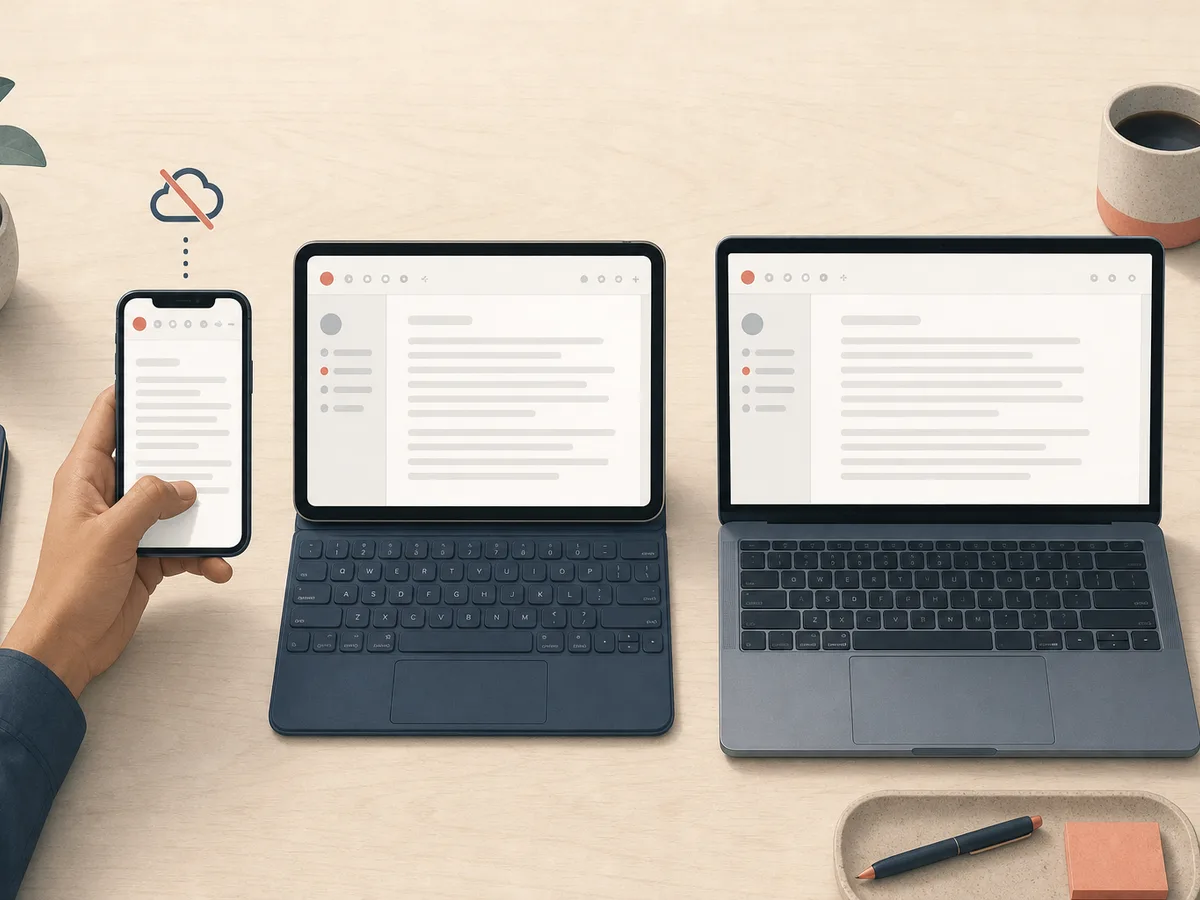
Offline access is another cross-device trap. Some apps make you mark documents or workspaces as available offline on every device, so a draft you synced on your laptop may be unreachable on your phone in a tunnel. Check that setting before you travel.
Then test input:
- Phone: one-handed typing, easy text selection, and a toolbar that doesn't crowd the screen.
- Tablet keyboard: shortcuts, such as bold and undo, should work with an attached keyboard, and the layout should use the extra space.
- Laptop: full shortcuts and a distraction-free view.
A good cross-device app feels familiar on all three.
Formatting, Export, and File Compatibility
Export formats decide whether your draft is truly yours. Look for plain text, Markdown, a Word-compatible file (.docx) and PDF, and confirm that each one works offline, not only after you reconnect.
Test how formatting survives. Export a short document with headings, lists, links and bold text, then open it in another program. Markdown should keep structure as readable symbols. A .docx file should keep headings as real styles, not just large text.
Images deserve their own check. Some apps store pictures only in the cloud, so they appear as blank boxes until you are online. Insert one while offline and see whether it stays.
Finally, consider your workflow:
- Can you copy clean text into your CMS or email without stray styling?
- Does export create one file or a whole folder?
- Can an editor open the result without special software?
Battery Use, Speed, and Distraction-Free Editing
On the road, a heavy editor costs you twice: it drains your battery life and slows the moment you want to start typing.
Notice how fast the app opens from a cold start and how it handles a long document. Lag, fan noise or a warm phone suggest a draw on power.
Then look at focus. A distraction-free layout hides menus and toolbars. A focus mode dims everything except the current line or paragraph, which helps on a crowded train. A word count goal gives you a clear stopping point when your ride is short.
A Practical Checklist to Test Before You Commit
Run this trial checklist before you pay. The airplane mode test exposes most weak spots within twenty minutes.
- Open the app and let your documents load while online.
- Switch on airplane mode.
- Create a new document, then edit an existing one. Try search and a formatting change.
- Force-close the app and reopen it, still offline. Your new text should be there.
- Restart the device, if you can, and check again.
- Turn the connection back on. Watch for a clear sync indicator, and confirm both documents match on a second device.
- Open version history and look for the offline edits.
- Export a file as plain text, Markdown or Word-compatible, and open it elsewhere.
How to weigh the results
Treat lost text, failed restarts and broken sync as disqualifying, whatever else the app offers.
After that, priorities decide. Heavy formatters should weigh export fidelity most. Multi-device writers should favor sync and history. Minimalists who draft on a phone should care most about launch speed, battery use and focus tools.