
What a Writing Software Free Trial Checklist Should Cover
A good writing software free trial checklist tests output quality, editing accuracy, workflow fit, integrations, privacy, trial limits, support and cancellation terms, using your own real work. That lets you judge value before you pay, not after.

Trials are short because vendors want you to reach a quick "this is useful" moment, and a limited window nudges you to decide. Many also cap usage or lock features, so the clock is not your only constraint.
Testing without a plan wastes that window. You tinker with a demo prompt, admire a clean interface, and reach day six without having checked whether the tool handles your actual documents, formats or client rules.
A structured free trial for writing tools fixes this. The checklist below helps you evaluate writing software in a consistent way, so you can compare options fairly.
The ten checks fall into four groups:
- Quality: output, voice and style, and grammar accuracy.
- Fit: interface, integrations and collaboration.
- Risk: privacy and whether the trial matches the paid plan.
- Support and cost: help resources, pricing, billing and cancellation.
What Should You Prepare Before Starting the Trial?
Good trial preparation takes under an hour and saves days of aimless clicking. Do four things before you sign up:
- Set one goal. For example: "cut my editing time on blog posts" or "keep client emails consistent."
- Gather two or three real samples. Pick a rough draft, a finished piece with known errors, and one tricky format, such as a report with headings.
- List your must-have features. Keep it to three to five, like a style guide or Google Docs support.
- Note the end date. Add it to your calendar, with a reminder a day or two earlier.
The Ten Tests to Run During Your Trial
Treat the ten checks below as your trial testing plan. Run each one on your own sample documents, then log a quick note: pass if it meets your need, partial if it works with workarounds, fail if it blocks you. Add one line explaining why, so later comparisons between tools stay fair.
1. Output Quality on Your Real Tasks
Start with output quality, because everything else depends on it. Paste in a real draft, a paragraph you want rewritten and a long document to summarize.
Check three things:
- Accuracy: did it add, drop or distort facts?
- Clarity: does it read cleanly?
- Editing effort: how long to make it publishable?
Note pass, partial or fail.
2. Voice and Style Control
Give the tool a short style brief, then see whether it follows it. Paste in your brand voice notes, tone preferences or a style guide excerpt.
Run the same brief on two different documents, such as a blog intro and a product email. Check whether word choice, sentence length and formality stay consistent, and whether the tool flags off-brand phrasing. Mark pass, partial or fail.
3. Grammar and Editing Accuracy
Paste in a passage where you already know the errors: a misplaced comma, a subject-verb slip, a homophone, a wordy sentence. Grammar checker accuracy comes down to three things: did it catch them, were its fixes right, and did it invent problems? Check that each suggestion explains itself, and that accepting or rejecting takes one click. Note any false alarms.
4. Interface and Daily Workflow
Spend one normal working session inside the tool, not a demo. Open a document, start from a template, edit, and export. Note how long each step takes and how often you reach for the mouse.
Check whether shortcuts exist, whether navigation is obvious, and whether the editor lags on long files. Small annoyances, like extra clicks, compound over months in your writing workflow.
5. Integrations and Export Formats
Open your real tools and check that the integrations work there, not just in the tool's own window. Install the browser extension, try the editor plugin, and paste into your CMS.
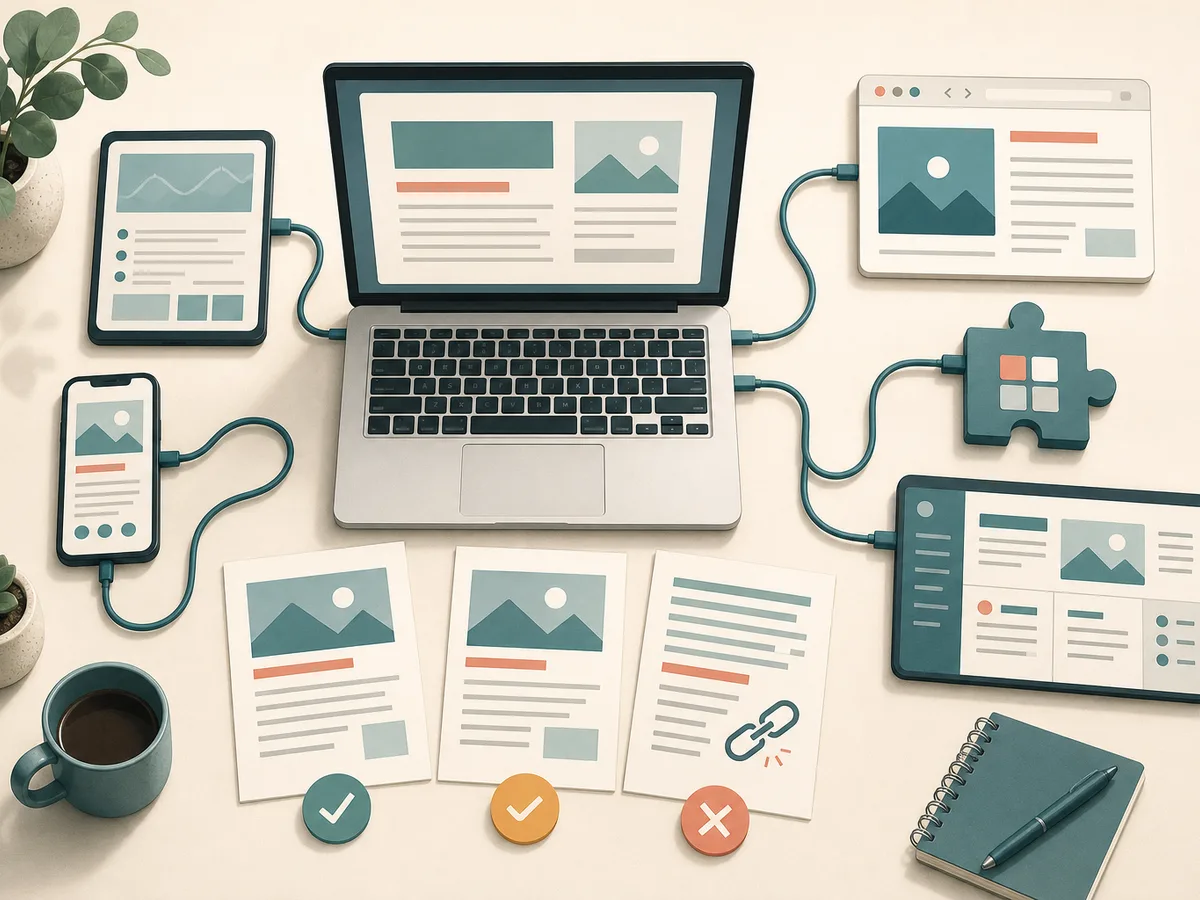
Then export a formatted sample to each of the export formats you need, such as DOCX, PDF or HTML. Look for lost headings, broken links, odd spacing and stripped comments. Note pass, partial or fail.
6. Collaboration and Permissions
Team collaboration is easy to overlook in a solo trial, so invite a colleague if the plan allows it.
Test these:
- Leave and resolve comments on a shared document.
- Assign roles such as editor and viewer, then check what each can change.
- Open version history and restore an earlier draft.
- Confirm that style settings apply to everyone.
Note whether extra seats are available during the trial.
7. Privacy and Data Handling
Read the privacy policy and terms before you paste in anything sensitive. Look for three answers: how long your content is stored, whether it can train the vendor's models, and how you delete it.
Then check those answers against any client or company rules on data privacy. If the policy is vague, ask support in writing. Mark the test a fail if the answers stay unclear.
8. Does the Trial Include the Features You Will Actually Pay For?
Heading question: answer first. Keep to ~65 words.
Not always, so check. Compare the trial against the paid plan features you would actually buy, not the top tier on the pricing page.
Look for word or document caps, locked tools like plagiarism checks or brand voice, and slower or weaker models. If a feature you need is restricted, note it. Trial limits can hide real performance, so ask support to confirm.
9. Support and Learning Resources
Send customer support a real question, ideally one about a task you actually need done. Note how long the reply takes and whether it solves the problem or just links a generic article.
Then browse the documentation, tutorials and onboarding checklist. Can you find answers without help? Mark the test pass, partial or fail.
10. Pricing, Billing and Cancellation Terms
Before you subscribe, read the pricing and billing terms as closely as the features. Check:
- Whether a card is required to start.
- What date billing begins.
- Whether the plan renews monthly or annually.
- Whether renewal reminders are sent.
Then find the cancel subscription option in account settings. If it needs a support ticket or a call, mark that as friction.
What to Do in the Final Days of Your Trial
As the end of trial approaches, stop exploring and tidy up.
- Rerun any test marked "partial" or "fail" with a fresh sample, in case it was a one-off.
- Export your documents in the formats you need, before access is locked.
- Find the cancellation page and confirm what it requires.
- Set a calendar reminder for a day or two before billing starts.
If you decide to leave, cancel early and keep proof.
How to Score Your Results and Decide Whether to Subscribe
Start with your must-haves, not the total. A tool that passes eight checks but fails one of your must-haves, such as privacy rules or a required export format, is still a no.
- Mark each of the ten results pass, partial or fail.
- Circle the checks tied to your must-haves.
- Treat any must-have fail as a dealbreaker unless a workaround is realistic.
- Count the partials and ask whether they would irritate you in month three.
To compare writing tools fairly, put them in one grid with the same ten rows and the same sample documents. Note the deciding differences, not every small gap.
Your subscribe decision then falls into one of three verdicts:
- Subscribe: all must-haves pass and the partials are tolerable.
- Keep testing: one must-have is unclear. Extend the trial or test it again with fresh material.
- Walk away: a must-have fails, or the paid plan lacks what the trial showed.
If two tools tie, choose the one with easier cancellation.