How Do You Export Writing to WordPress, Markdown, and PDF Without Losing Formatting?
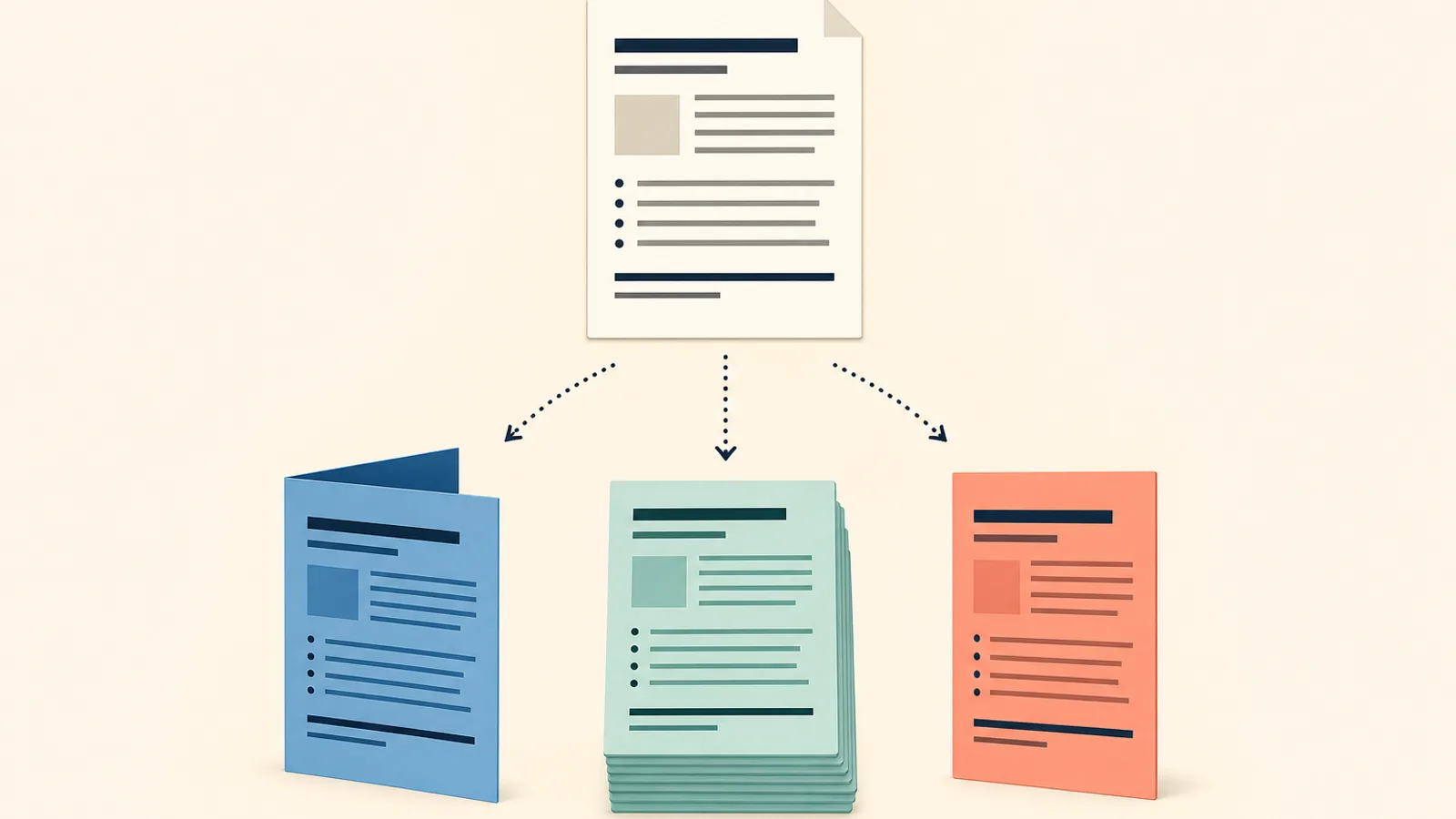
To export writing to WordPress, Markdown, and PDF without losing formatting, apply real heading and list styles in your draft first. Then use each format's native route: block paste or import for WordPress, a Markdown export for plain text, and a print-ready export for PDF. Preview every result before publishing.
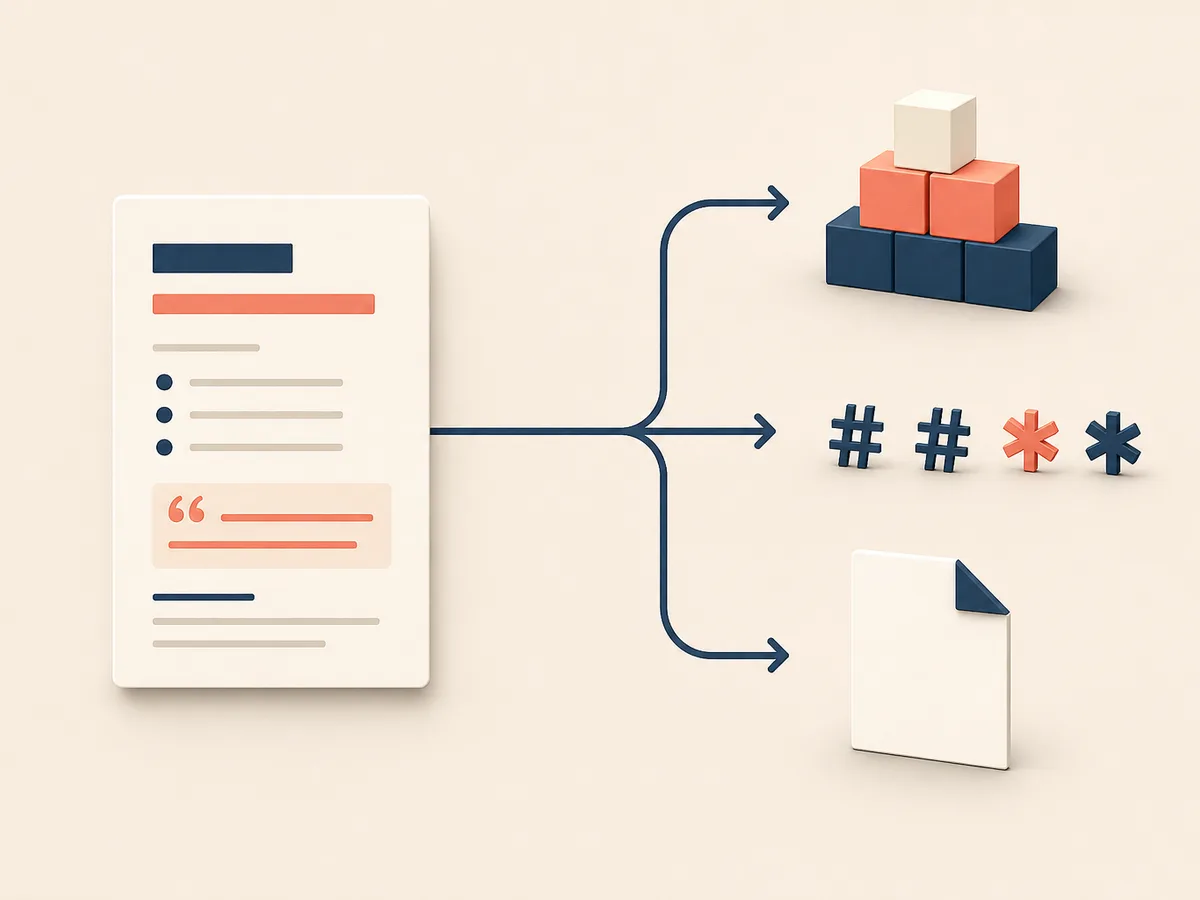
Each route reads your document differently, so each needs a different handoff.
- WordPress: the block editor turns pasted headings, lists, and quotes into blocks. You can also use an importer or publish directly from your writing tool.
- Markdown: the export converts styles into plain-text symbols, which suits static sites, documentation, and version control.
- PDF: the export freezes layout, fonts, and page breaks into a file that looks the same everywhere.
Formatting usually breaks because the draft only looks structured. Bold text standing in for a heading, spaces used for indents, and tabs used for lists give the exporter nothing to translate. The destination then guesses, and the guess is often wrong.
The rest of this guide follows the order of the work. It starts with a cleanup routine for the draft, then covers WordPress transfer methods and post-transfer fixes. After that come Markdown and PDF, a comparison of the three formats, and a pre-export checklist with quick fixes for common problems.
Prepare the Draft: Use Styles Instead of Manual Formatting
Exporters read structure, not appearance. A line in 18-point bold looks like a heading to you, but to the exporter it is a normal paragraph with bold text. Apply real heading styles, list styles, and quote styles, and each tool can map them to an H2, a bulleted list, or a blockquote.
Manual formatting fails for the same reason. Extra blank lines, spaces used as indents, and tabs used as list markers carry no meaning, so they turn into odd gaps, stray characters, or broken lists.
A short cleanup routine
Run these steps on a clean draft before any export:
- Replace bold or enlarged "fake headings" with heading styles, in strict order (H2, then H3).
- Convert typed hyphens, numbers, and tabs into real bulleted or numbered lists.
- Apply the quote style to quoted passages instead of indenting them.
- Delete repeated blank lines and spaces; adjust spacing in paragraph settings instead.
- Search for tabs and double spaces, then remove them.
- Clear leftover direct formatting from pasted text.
Ten minutes here usually saves far more time fixing each export separately.
Exporting Your Draft to WordPress
WordPress offers three routes: paste into the editor, run an importer, or publish straight from your writing tool.
The WordPress block editor converts incoming content into blocks. Styled headings become Heading blocks, lists become List blocks, and quotes become Quote blocks. Unstyled text arrives as plain Paragraph blocks, so any fake structure stays fake.
Choosing among the routes is the next decision.
Choose Between Pasting, Importing, and Publishing Directly
Each route trades control against speed and stray styling.
Pasting
Paste into WordPress when you have a single post. It is fast and lets you fix problems block by block. The risk is inline styles carried over from Word or Google Docs, so paste as plain text or use "Paste without formatting" if the result looks off, then reapply headings.
Importing
Use an importer for a batch of posts. It handles volume and keeps structure, but you get less control per post. Test with two or three files first, then check the output.
Publishing directly
Publishing from your writing tool is quickest once it is connected. It suits regular posting, though cleanup is harder because you only see the result after it goes live. Send drafts rather than published posts.
Fix Images, Links, and Embedded Media After the Transfer
Pasted content rarely carries everything across, so check four things in the preview.
- Images: Confirm each image upload finished and appears in the Media Library, not as a broken link to your draft. Add alt text that describes the image's purpose.
- Links: Hover over each one. Check the target, and that internal links point to the live page rather than a draft address.
- Embeds: Videos and social posts should render as embed blocks, not bare URLs.
- Inline styles: Look for odd fonts, colors, or spacing carried over from the source. Use "Clear formatting" on those.
Exporting to Markdown for Static Sites and Documentation
A Markdown export keeps structure and drops appearance. Headings, bold, italics, lists, links, quotes, and code blocks become plain-text symbols. Fonts, colors, text alignment, and page layout are lost, and complex tables may not survive.
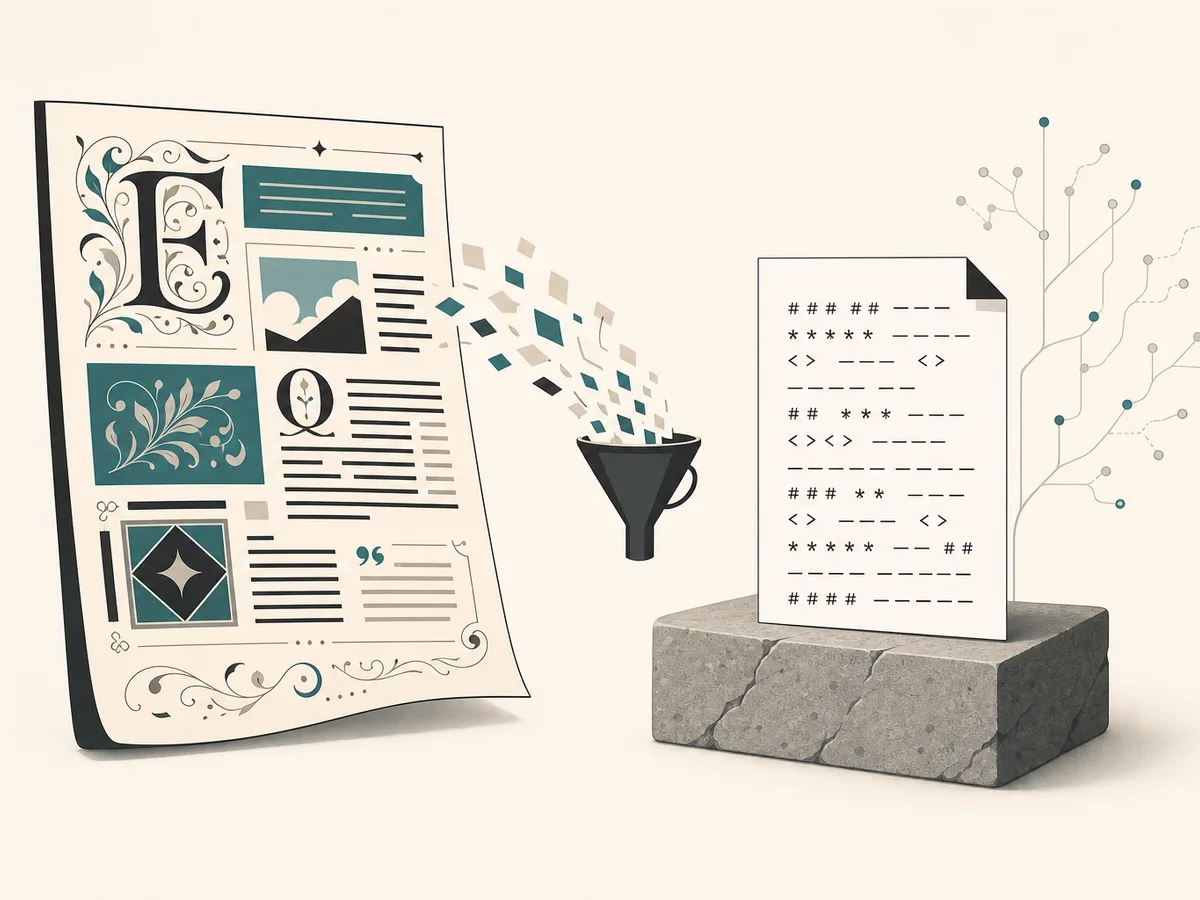
That is the point. Plain text diffs cleanly in Git, loads into static site generators, and suits documentation that developers edit. Choose it when content must outlive any single tool.
Keep Headings, Lists, and Tables Readable in Plain Text
Open the exported .md file in a plain-text editor and check each element against its Markdown syntax.
- Headings: Each should start with `#` marks and a space, and levels should not skip (no `####` under `##`).
- Lists: Nested items need consistent indentation, usually two or four spaces.
- Code blocks: Look for matching triple backticks.
- Links: Confirm `[text](url)` pairs have both brackets and parentheses intact.
- Tables: Pipes should line up, with a separator row under the header.
Check the front matter too. Keep the `---` fences and one `key: value` per line, and quote titles containing colons.
Markdown cannot represent colors, merged table cells, or comments. Flatten merged cells into separate rows, or use inline HTML if your site allows it. Otherwise, note the loss and move on.
Create a PDF That Keeps Fonts, Page Breaks, and Links
Start with the page setup, because changing size or margins after export reflows everything. Pick the paper size your reader will print on (Letter or A4), and keep margins generous enough that nothing is clipped.
In the export dialog, turn on the option to embed fonts. Without it, a viewer may swap in a fallback and shift your line breaks.
Then control PDF page breaks in the draft, not afterward:
- Set headings to "keep with next" so they never sit alone at the bottom of a page.
- Turn on widow and orphan control.
- Insert a real page break before each new chapter instead of pressing Enter repeatedly.
Check that the export includes links as live hyperlinks, not flattened text.
Finally, open the file in a separate viewer. Scroll every page, click several links, and search for a distinctive word to confirm the text is selectable. Check the file size, too, before you send it.
Which Export Format Fits Your Goal?
Choose by where the text goes next: WordPress to publish on a site, Markdown to keep editing and versioning, PDF to share a fixed layout. This export format comparison shows the trade-offs.
| Criterion | WordPress | Markdown | |
|---|---|---|---|
| Editability | High, in blocks | High, any text editor | Low |
| Layout fidelity | Set by your theme | Minimal | Exact |
| Portability | Tied to a site | Very high | High |
- Blog post or article: WordPress.
- Documentation or developer content: Markdown.
- Contract, report, or handout: PDF.
- Content reused in several places: Markdown first, then convert.
Pre-Export Checklist and Fixes for Common Formatting Problems
Run this export checklist before every export, then fix what the preview shows.
- Headings use real styles, in a logical order.
- Lists use list styles, not typed dashes or tabs.
- Images have alt text and sit inline, not floating.
- Links are live and point to the right pages.
- Save a copy, then preview the output.
Common formatting problems have quick fixes:
- Broken lists: reapply the list style, then remove stray indents.
- Odd characters: set UTF-8 encoding, or replace curly quotes and special dashes.
- Missing images: re-upload them, or export with media included.
- Shifted headings: check for a skipped level, such as H1 to H3, and reset it.
Fix the source draft, not the exported file, so the repair carries into your next export.