What Document Version History for Writers Is and Why It Protects Your Work
Document version history for writers is a record of a document's saved states. It lets you compare drafts and return to an earlier one, so cuts, rewrites and mistakes are never permanent.
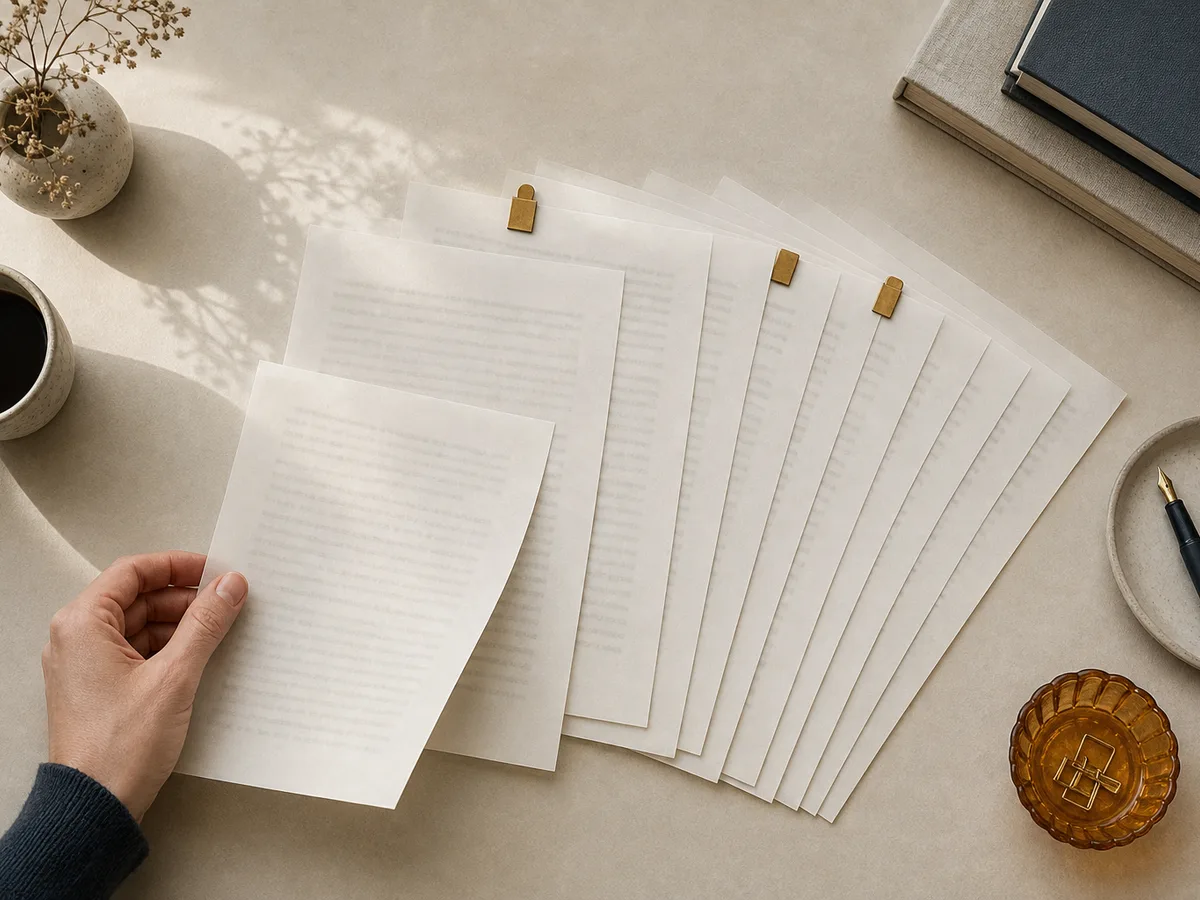
Most tools record the text as it stood at each saved point, plus a timestamp and often the name of whoever edited it. Some also keep formatting and comments. What they rarely record is your reasoning: why a scene was cut or a section moved.
Autosave snapshots versus deliberate milestones
Autosave snapshots are taken automatically, often every few minutes or after bursts of editing. They are dense and effortless, but they pile up with no meaning attached. Finding the version from before Tuesday's rewrite can mean scrolling through dozens of near-identical entries.
Milestones are versions you choose to mark: the finished outline, the draft you sent to an editor, the version before a major restructure. They take a moment, yet they are the ones you will actually look for later.
What it guards against
- Cutting a passage and regretting it days later
- Overwriting good work with a weaker rewrite
- Accidental deletion or a bad paste
- Collaborators' edits that quietly replace your wording
- Corrupted or lost files
Built-In History, Manual Saves or Dedicated Version Control: Which Fits Your Process?
Each approach trades effort against control. A table makes the differences easier to see.
| Criterion | Built-in history | Manual saves | Dedicated version control |
|---|---|---|---|
| Effort | None | Moderate, relies on habit | Highest at first |
| Detail | Dense, unlabeled snapshots | Only what you chose to save | Every change, with a note |
| Searchability | Weak, mostly scrolling | Good if names are consistent | Strong, by message and difference |
| Risk of loss | Depends on the tool's retention | Depends on discipline and backups | Low, if the history is backed up |
Which one suits you
Solo writers can rely on word processor revision history for everyday safety. Add a few manual milestones, such as the draft you sent to an editor, so the important versions are easy to find.
Collaborative projects benefit from built-in history with named editors, plus tracked changes and comments. Shared tools show who changed what without anyone managing files.
Book-length manuscripts raise the stakes. Long projects accumulate restructures, so combine milestone copies with a backup kept outside the writing app. If you are comfortable with plain text, version control for writers, such as Git, gives precise comparisons and notes on every change. The learning curve is real, and it suits text-based files better than heavily formatted ones.
For most writers, built-in history plus deliberate milestones is the sensible default. Move to dedicated tools only when you need that finer control.
How Do You Track Drafts Without Creating a Mess of Files?
The short answer: keep one working file, create checkpoints on purpose, and store old versions somewhere separate from the live draft.
One live file
Pick a single document as the draft you actually write in. Never open an old copy and keep typing there. When two files could be "the real one," you will eventually edit the wrong one.
Checkpoints, not constant copies
To track drafts without clutter, save a version only when something meaningful changes:
- Before a major cut or restructure
- When you finish a stage, such as the outline or a full first pass
- Before you send the draft to anyone
Skip the "just in case" copy made every evening. Your tool's autosave already covers that.
An archive apart from the draft
Keep checkpoints in the built-in history, or in a folder called "Archive" beside the working file. Either way, the live draft stays alone in its main location.
Treat archived versions as read-only. If you want to reuse something from one, copy it into the live draft. That habit keeps the archive trustworthy, and it keeps your folder from filling up with files named "final_v2_REAL."
Name and Label Versions at Meaningful Milestones
A version naming convention only works if you can read it six months from now. Pick one pattern and use it every time.
A reliable format is: date, stage, short label. Write dates as year-month-day (2025-03-14) so versions sort in chronological order automatically.
- 2025-02-03 Outline – approved structure
- 2025-03-14 Draft 1 – complete
- 2025-04-02 After editor feedback
- 2025-04-20 Final – submitted
Name versions at milestones: before a restructure, when you send work out, and when feedback comes back. Skip names for routine autosaves.
Avoid labels like "final2" or "newest". They mean nothing later. If a stage repeats, number it (Draft 2, Draft 3) rather than inventing new words.
Add Short Change Notes So Future You Knows What Changed
A version name tells you when and at what stage. It doesn't tell you why. Add one line to each checkpoint, and your draft change notes become a map of your decisions.
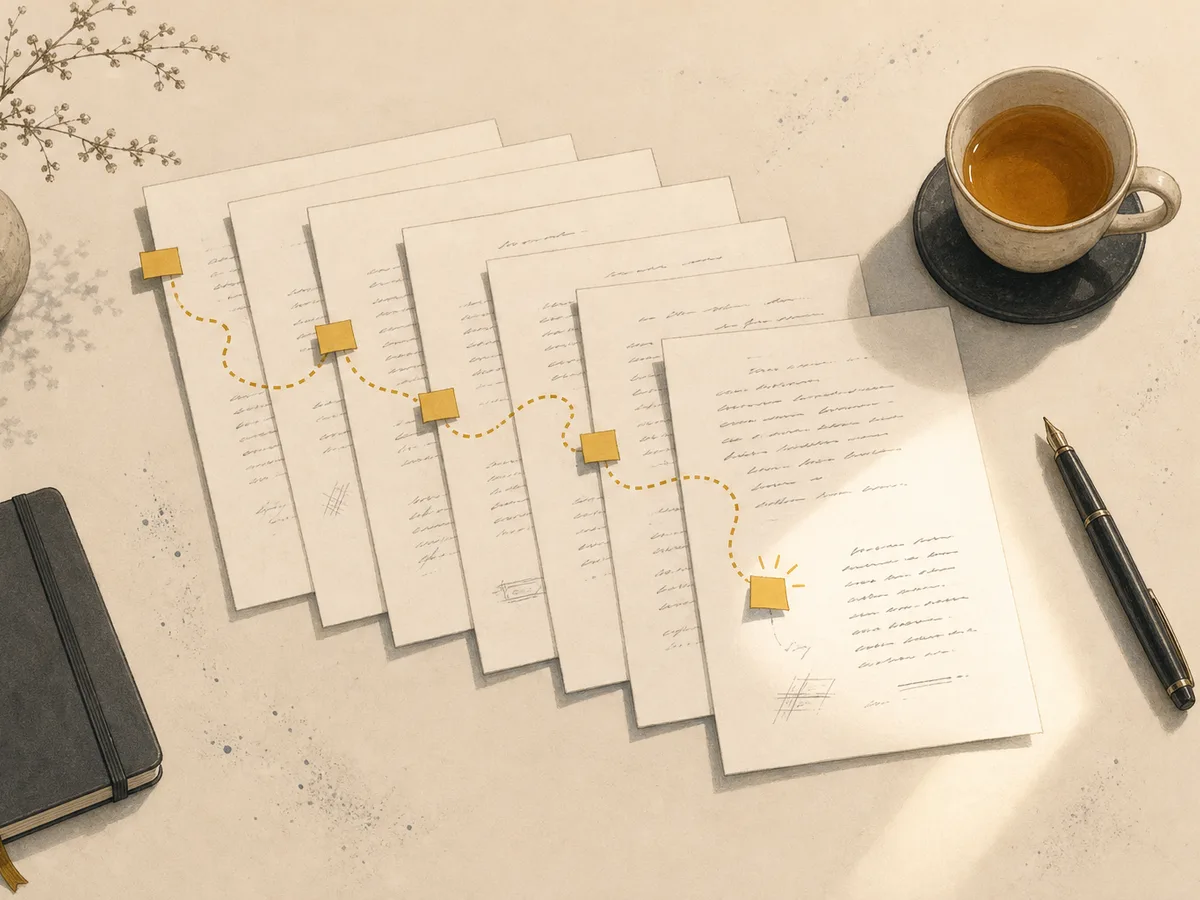
Keep them specific and brief:
- "Cut the flashback from chapter 3."
- "Moved pricing section before the case study."
- "Softened the ending after Sam's feedback."
When you're choosing between two versions, you can read the notes instead of opening both files and comparing them line by line. Write the note while the change is fresh. A week later you won't remember.
How to Restore an Earlier Version Safely, Step by Step
To restore an earlier version safely, protect your current draft first, then work from a copy. Rolling back blindly can erase edits you later want.
- Save the current state as its own version. Name it clearly, for example "Before restoring v3." Even a draft you dislike may hold a few good sentences.
- Preview the older version. Open it in read-only view if your tool offers one. Check that it is the one you want, using its date and any change note.
- Compare the differences. Use a comparison view if available, or read the two versions side by side. Mark what you would lose by going back and what you would regain.
- Restore as a copy. Most tools offer "Make a copy" or "Save as new." Use it instead of overwriting, so both versions stay intact.
- Merge or replace deliberately. If only parts of the old version matter, move those passages into the current draft. If the old version is clearly better, make the copy your working file and archive the rest.
Resist the urge to hurry. A restore feels urgent when you are frustrated, but the extra minute spent on step one is what makes every later choice reversible.
Recovering a Single Paragraph Instead of Rolling Back Everything
A full rollback is often too blunt. If you only need one paragraph, leave your current draft alone and take the passage from the old version.
- Open the older version in preview or as a copy, never as the live file.
- Find the passage and copy it.
- Return to your current draft and paste it where it belongs.
- Reread the surrounding sentences and adjust the transitions.
This is also the quickest way to recover deleted text without undoing a day of good edits. If the old wording no longer fits, paste it into a scratch note and borrow only the best lines.
Build a Simple Version-History Routine You Will Actually Keep
A routine only works if it takes less than a minute. Keep it small and tie it to moments you already notice.
When to checkpoint
Save a named version at these points:
- Before a major cut, rewrite or restructure
- Before sending the draft to anyone
- When you receive edits back
- At the end of a work session that changed a lot
Collaborators and editors
Never accept a batch of changes into your only copy. Save a checkpoint first, then review their edits against it.
Backups
A good writing backup routine uses two locations: your main tool's history plus a separate copy elsewhere, such as an exported file in another cloud folder or on an external drive. Refresh it weekly or at each milestone.
Project checklist
- Is there one live working file?
- Are milestones named by stage and date?
- Does each have a one-line note?
- Is the backup copy current?
- Have I tested restoring one version?