
What Is Accessible Content Writing and Why Does It Matter?
Accessible content writing means creating text, images and structure that people with disabilities can perceive and understand, including through screen readers. Its core habits are concise alt text, logical headings and plain language. Together they also make content clearer for every reader.

Who benefits
Web accessibility is often framed around blind users, but the audience is wider:
- Screen reader users, who hear content read aloud and jump between headings and links.
- People with low vision, who may magnify text or use high-contrast settings.
- Readers with cognitive or learning disabilities, who need clear wording and predictable order.
- Deaf or hard-of-hearing readers, who depend on text for what audio would convey.
- Everyone else: non-native speakers, people on slow connections, and anyone skimming on a phone in a hurry.
How the three practices fit together
Each habit covers a different layer. Alt text makes images meaningful when they can't be seen. Headings give the page a navigable outline, so readers can find what they need without reading everything. Plain language makes the words inside that structure easy to understand.
Remove one and the others carry less weight. A well-organized page full of jargon still excludes people, and clear prose under vague headings is hard to navigate.
Writing Alt Text: Describe Purpose, Not Pixels
Alt text is a short written alternative for an image, added in the image's `alt` attribute. Screen readers announce it aloud, and it appears in place of the image if the file fails to load. People who are blind or have low vision rely on it most, but it also helps anyone on a slow connection.
Good alt text describes purpose, not pixels. Ask what the image is doing on the page, then write what a reader would miss without it.
How to write it
- Convey meaning in context. The same photo of a person may need a name in a staff directory and an action in a news story.
- Stay concise. A short phrase or one sentence is usually enough. Many writers aim for the shortest wording that still carries the point.
- Skip "image of" and "photo of." Screen readers already announce that an image is present.
- Don't repeat nearby text. If the caption says who is pictured, the alt text should add what the caption leaves out.
A quick example
Weak: "Image of a graph with a line going up."
Better: "Monthly sign-ups rose steadily after the June launch."
The second version states the point of the image rather than listing its visual features. Write your image descriptions for a reader who needs the message, not an inventory.
Decorative, Functional and Complex Images: What to Write
Not every image needs a description. The right choice depends on what the image does.
Decorative images
Purely decorative images, such as a divider line or a stock photo that adds mood but no information, should have empty alt text (`alt=""`). Screen readers then skip them instead of reading out noise.
Functional images
If an image is a button or link, describe the action, not the picture. A magnifying-glass icon that starts a search needs "Search," not "magnifying glass." A logo linking home might say "Home."
Charts and diagrams
Keep the alt text short and name what the chart shows, such as "Bar chart of monthly sign-ups, 2023." Then put the full detail in nearby text: a summary of the trend, or a data table. Point to it from the alt text if helpful.
How Should You Structure Headings for Screen Readers and Skimmers?
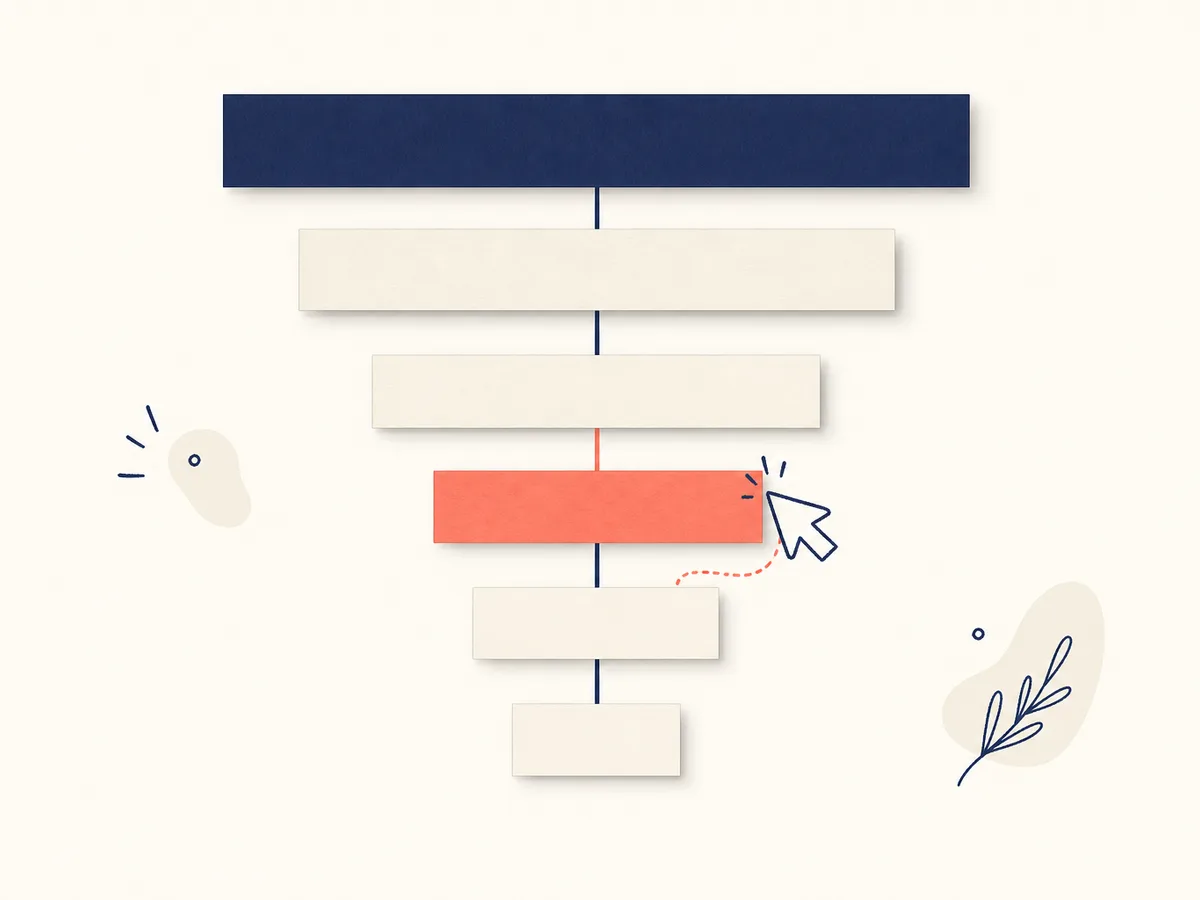
Structure headings as a nested outline: one top-level title, then sections, then subsections. Screen reader users often pull up a list of headings or jump from one to the next. A clear heading hierarchy lets them skip to what they need. Skimmers use the same outline visually.
Rules that keep the outline sound
- Use one top-level heading. The H1 is the page title. Everything else sits beneath it.
- Don't skip levels. An H2 should be followed by an H3, not an H4. Gaps suggest missing content and break the outline.
- Write descriptive headings. "Refund deadlines" tells someone where they are. "More information" doesn't, especially when heard out of context in a list of headings.
- Use headings for structure, not looks. Don't pick an H4 because it's small, or bold a line of text to fake a heading. Screen readers won't announce it as one. Set size and weight with styles instead.
A quick test
Read only your headings. Do they summarize the page in order? If the outline is confusing, readers will struggle too.
Keep headings short, and don't use them to break up a single paragraph.
Link Text and Lists That Make Sense Out of Context
Screen reader users often pull up a list of every link on a page. Out of context, "click here" or "read more" becomes a string of identical, meaningless items.
Descriptive link text tells readers where the link goes, even when heard alone. Compare:
- Weak: "To see our pricing, click here."
- Better: "See our pricing plans."
Avoid bare URLs and repeated "learn more" links. Put the key words inside the link, not around it.
Use real lists and short paragraphs
Use true bulleted or numbered lists, not dashes typed by hand. Assistive technology announces a real list and its item count, so readers know what to expect.
Keep paragraphs to a few sentences, each with one idea. Short blocks are easier to scan, easier to navigate, and less tiring for everyone.
Plain Language Basics: Short Sentences, Common Words, Clear Order
Plain language means writing so readers can understand your message the first time they read it. It is not about dumbing down. It is about removing obstacles that have nothing to do with your ideas.
Core techniques
- Lead with the key point. Put the answer, decision or action first, then add detail. Someone who stops after one sentence still gets the essentials.
- Use familiar words. Write "use" instead of "utilize" and "start" instead of "commence."
- Prefer active voice. "Submit the form by Friday" is clearer than "The form must be submitted by Friday."
- Keep sentences focused. Aim for one idea per sentence. If a sentence needs several commas, split it.
- Explain unavoidable jargon. If a technical term is necessary, define it where it first appears.
- Spell out abbreviations on first use. Write "Web Content Accessibility Guidelines (WCAG)" once, then use the short form.
Who benefits
Readers with cognitive or learning disabilities gain predictable order and less to hold in memory. Non-native speakers face fewer idioms and rare words to decode. Readers in a hurry find the point quickly.
Good readability also helps screen reader users, who hear text one sentence at a time and cannot easily glance ahead.
A Practical Checklist to Review Before You Publish
Use this accessibility checklist as a final pass, in order, before you hit publish.
- Alt text: Does every meaningful image have a short description of its purpose? Is decorative imagery left empty, and does each chart have a longer description nearby?
- Headings: Is there one top-level title, with no skipped levels? Does each heading describe the section below it?
- Links: Does each link make sense read alone? Replace "click here" with the destination or action.
- Lists and paragraphs: Are lists built as real lists, and are paragraphs short?
- Plain language: Does each section lead with its key point? Are jargon defined and abbreviations spelled out on first use?
Then run two quick checks:
- Review the page outline or heading list. If it reads like a sensible table of contents, the structure is probably sound.
- Listen to the page with a screen reader, or at least tab through the links.
Treat these as prompts for fixing problems, not proof of full compliance.